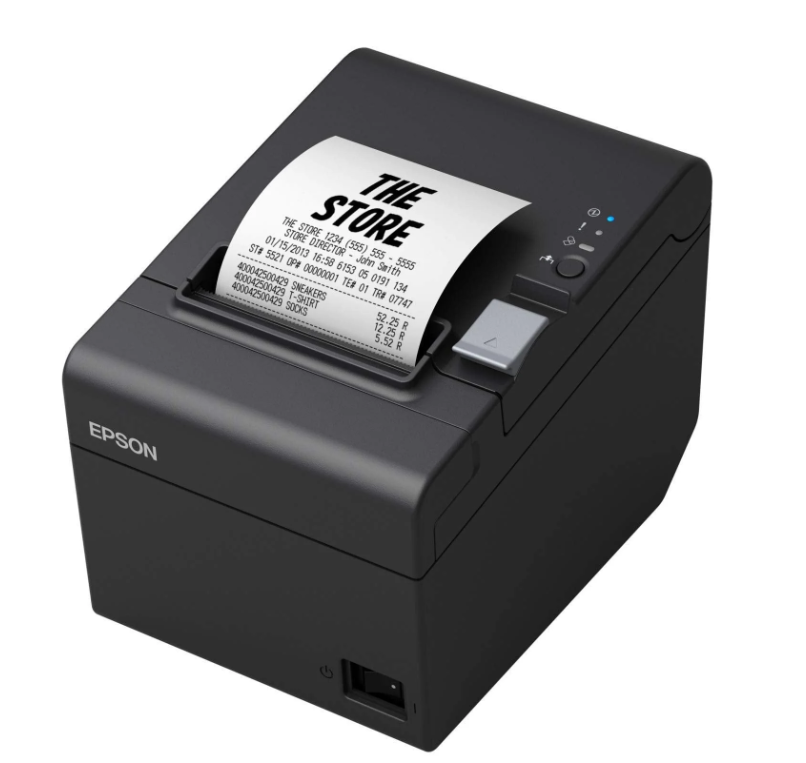
For businesses that handle frequent transactions, a reliable Epson receipt printer is essential. From retail stores to restaurants, these printers ensure that every transaction is documented accurately and efficiently. However, even the most reliable printer needs routine maintenance, and one of the most common tasks is replacing paper rolls. Learning how to do this properly prevents downtime, reduces errors, and keeps your point-of-sale system running smoothly.
Understanding Epson Receipt Printers
Before replacing the paper roll, it’s important to understand the basic components of an Epson receipt printer. Most models have a simple design with a top-loading paper compartment, a cutter mechanism, and control buttons for feed and power. Modern models may also include connectivity options like USB, Ethernet, or Bluetooth to interface with point-of-sale systems. While the mechanics are straightforward, handling them carefully ensures longevity and prevents paper jams or damage to the printer.
Signs That Your Paper Roll Needs Replacement
Replacing the paper roll isn’t just about running out of paper. Certain signs indicate it’s time for a new roll:
- Faded or incomplete printing on receipts
- Paper jams or uneven feeding
- Low paper indicator lights on the printer
- Excessive noise during printing
By paying attention to these signs, businesses can avoid interruptions during peak hours and ensure a smooth customer experience.
Step-By-Step Guide to Replacing Paper Rolls
Replacing a paper roll in an Epson receipt printer is a simple task if you follow the right steps:
Step 1: Turn Off the Printer
Before opening the paper compartment, power off the printer. This prevents accidental printing or damage to internal components.
Step 2: Open the Paper Compartment
Locate the paper cover on top of the printer. Press the release button or gently lift the lid, depending on your model.
Step 3: Remove the Old Paper Roll
Take out any remaining paper and the empty roll core. Make sure no torn bits of paper remain inside, as these can cause jams with the new roll.
Step 4: Insert the New Paper Roll
Place the new roll into the compartment, ensuring the paper feeds from the bottom or top according to your printer’s specifications. The thermal side of the paper should face the print head for proper printing.
Step 5: Feed the Paper
Pull a small amount of paper out past the cutter. Close the paper cover while keeping the paper aligned. Some models have a feed button to adjust the paper position.
Step 6: Test Printing
Turn the printer back on and press the feed button to ensure the paper rolls smoothly and the printer prints clearly. If there’s any misalignment, reopen the compartment and adjust the paper roll.
Tips for Maintaining Your Epson Receipt Printer
Regular maintenance ensures that your printer continues to perform at its best. Consider the following tips:
- Use high-quality thermal paper to prevent jams and prolong the print head’s life.
- Keep the printer clean and dust-free, especially around the cutter mechanism.
- Avoid overloading the paper compartment, which can cause misfeeds.
- Store extra rolls in a cool, dry place to prevent moisture damage.
Integrating Card Payment Machines
In many modern businesses, card payment machines are used alongside Epson receipt printers. Ensuring that both devices work together seamlessly is crucial for smooth transactions. When replacing paper rolls, confirm that your printer is correctly synced with the payment terminal. Misalignment or incorrect printer settings can lead to receipt errors or duplicate printing.
Common Issues and How to Troubleshoot
Even with careful maintenance, some issues may arise while replacing paper rolls:
- Paper Jam: Open the compartment, remove the paper, and check for any torn pieces.
- Blank Receipts: Ensure the thermal side of the paper is facing the print head and that the roll is loaded correctly.
- Misfeeds: Adjust the roll alignment or check the paper path for obstructions.
Most problems are easily fixed by following the manufacturer’s instructions, keeping the printer clean, and using compatible paper rolls.
Benefits of Proper Paper Roll Management
Properly replacing and maintaining paper rolls provides several advantages:
- Reduces downtime during busy hours
- Prevents errors in transaction records
- Extends the life of your Epson receipt printer
- Ensures a smooth, professional experience for customers
Businesses that regularly check and replace paper rolls maintain efficiency and reliability at their point-of-sale stations.
Conclusion
Replacing paper rolls in an Epson receipt printer is a straightforward process, but doing it correctly is essential to avoid disruptions and maintain printing quality. From identifying when the roll needs replacement to following step-by-step instructions and troubleshooting common issues, these practices keep your printer running efficiently.
When used alongside card payment machines, a well-maintained Epson printer ensures that transactions are processed quickly and accurately. Regular attention to paper roll management not only improves operational efficiency but also enhances the overall customer experience.